
Solutions
SketchUp AI Render Plugin
To create an AI render from a SketchUp model, install the Mimerra SketchUp extension, open the Mimerra panel from the Extensions menu, choose 1K, 2K or 4K and press Render AI: a photorealistic image that keeps your camera angle and model layout appears in the panel, in about 1–2 minutes on average for 4K. Because rendering happens on Mimerra's servers, you do not need to install a separate render engine in SketchUp, and credits are only used when a render is generated successfully.
How it works: render in 3 steps
- 1
Install the extension, open the panel
Install the .rbz file from the ZIP via Window > Extension Manager > Install Extension, then open the panel from Extensions > Mimerra and sign in.
- 2
Choose the resolution
Pick 1K, 2K or 4K, confirm the viewport reference and press Render AI.
- 3
Download the result
The result appears in the panel. Download it, revise it or generate a different variation.
Example: SketchUp viewport → Mimerra AI 4K
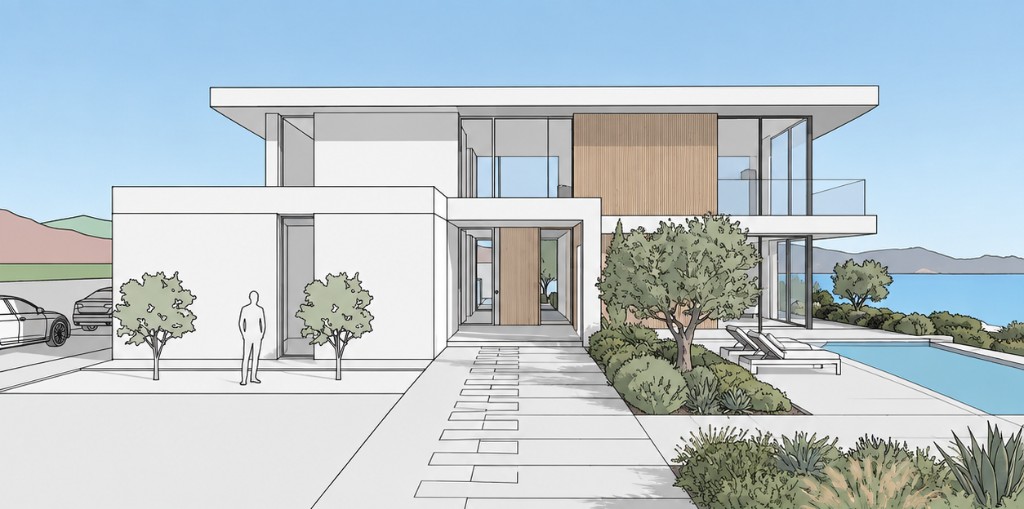
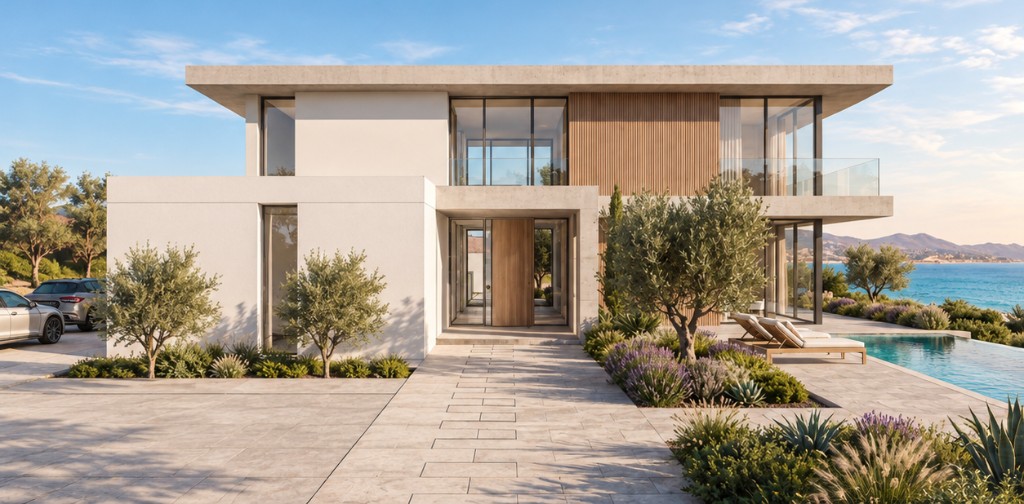
The comparison from the SketchUp extension page: same camera, same geometry, no render setup.
Common problems when rendering from SketchUp
- Installing and learning a separate render engine takes time
- Lighting setup, render queues and post-production can take hours
- High-resolution rendering needs powerful hardware
- Last-minute revisions before a client meeting do not make it in time
With the Mimerra extension
- Renders that keep your camera angle and model layout
- 1K / 2K / 4K resolution options
- 4K output in about 1–2 minutes on average (varies with model complexity)
- Results appear right in the SketchUp panel, ready to download
Key capabilities
Renders from new angles
Get new camera angles from the same model in minutes.
Fast revisions
See material, lighting and mood changes right away.
Design alternatives
Show clients several options instead of a single image and speed up decisions.
Frequently asked questions
Which SketchUp versions are supported?
Current versions of SketchUp Pro and Studio are supported, and the extension runs on Windows and Mac. Detailed release notes are on the SketchUp extension page.
Do I need V-Ray or Enscape?
No. Renders are generated with AI on Mimerra's servers, so you do not need to install a separate render engine in SketchUp. You do not have to drop your existing render workflow either; you can use Mimerra alongside it for fast concept and revision images.
Does it keep my camera angle and model layout?
Yes. The composition of the frame you send as a reference is used as the basis; your model stays as it is.
How does pricing work?
Renders are generated with credits. Credits are only used when a render is generated successfully — failed or empty results are not charged. Current credit packages are on the Pricing page.
How long does installation take?
About two minutes: install the .rbz file from the Extension Manager, open the panel and sign in.
Related pages
Related guides
Stop waiting hours for your next render
Explore the sample project without signing up, or download the extension and render from inside SketchUp.